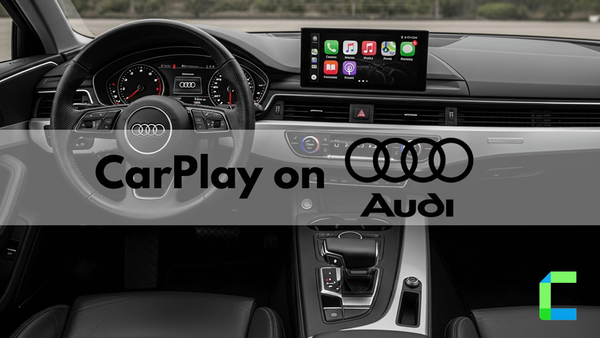


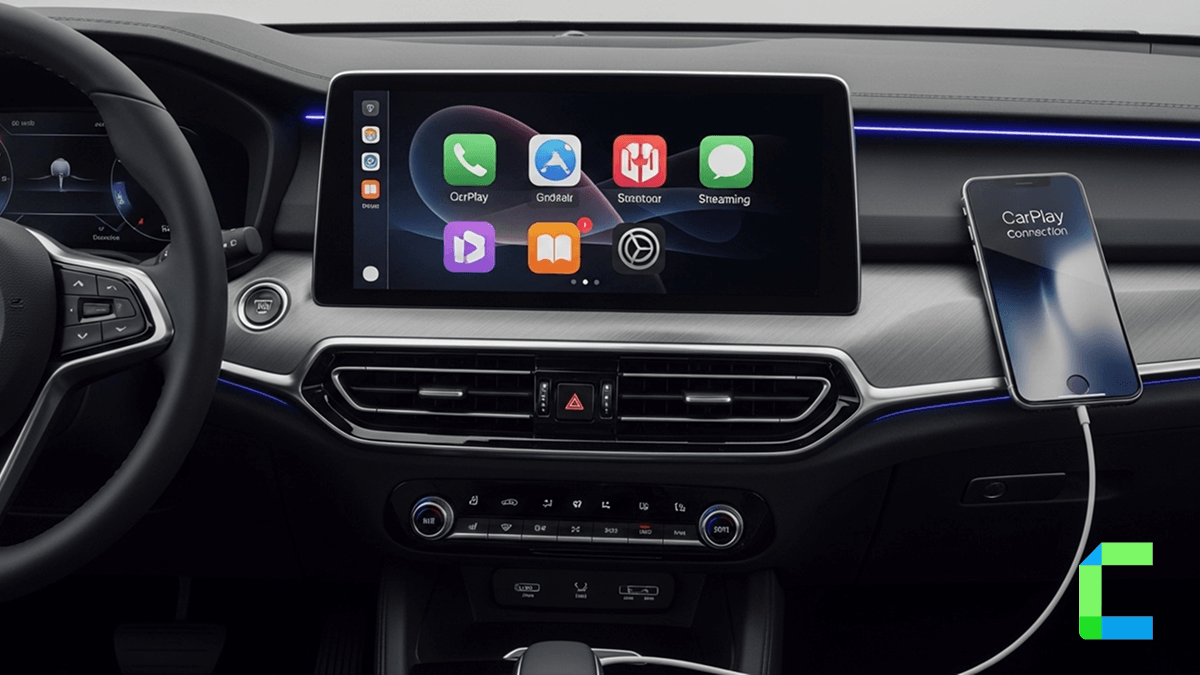
You may have some issues in your CarPlay setup and how it should be done, In this article, we have discussed how to set up CarPlay, compatibility, guides and methods to add more apps to CarPlay.
Let's dive in for more information on how you should set up CarPlay and the following shows the solutions to upgrade your CarPlay to the next level!!
To activate CarPlay on iPhone go to Settings > General > CarPlay and select the vehicle
If the car does not support CarPlay these are your other solutions you can install an aftermarket head unit or use AI box adapters like Carlinkit or Ottocast to enhance their CarPlay experience.
This article also explains:
- Apple CarPlay compatibility
- Apple CarPlay setup
- Common CarPlay connection issues
- How to add third party Apps
Prerequisites to Set Up CarPlay
Here is what you need to check before setting up CarPlay:
iDevice Compatibility: You will need an iPhone 5 or newer
iOS Compatibility: iOS 7.1 or later
Car Compatibility: a CarPlay compatible model.
If your car doesn’t support CarPlay, you can use CarPlay alternatives or install a compatible head unit.


How to Set Up CarPlay? (Step by Step)
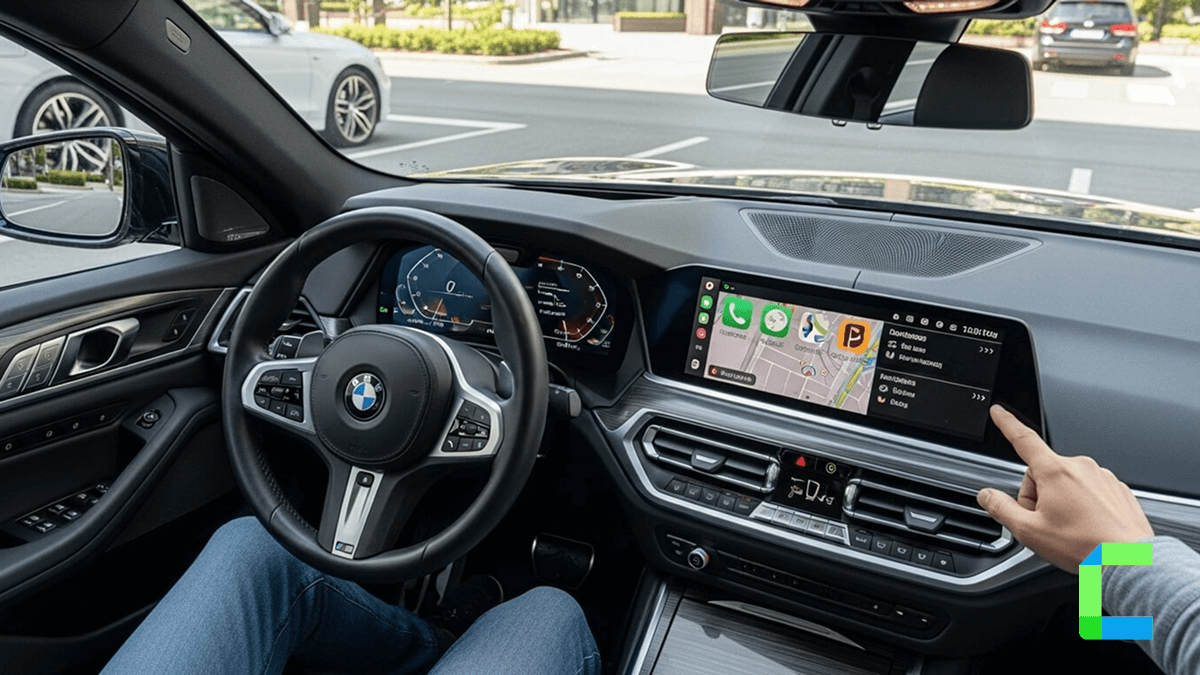
Now you have fulfilled all the requirements. Here’s how to install CarPlay for the infotainment system.
Benefits of Wired CarPlay
- More stable connection than wireless CarPlay
- Faster response and lower latency
- Charges your iPhone while driving
Benefits of Wireless CarPlay
- Cable-free connection
- Automatic reconnection
- Easier access to navigation and music apps
- Cleaner dashboard setup
How to Add More Apps
Apple CarPlay helps with navigate and listen to music while driving and also supports messaging and some other apps that are not made by Apple. However, people still look for ways to add video streaming and entertainment apps like YouTube or Netflix.
Official CarPlay Apps
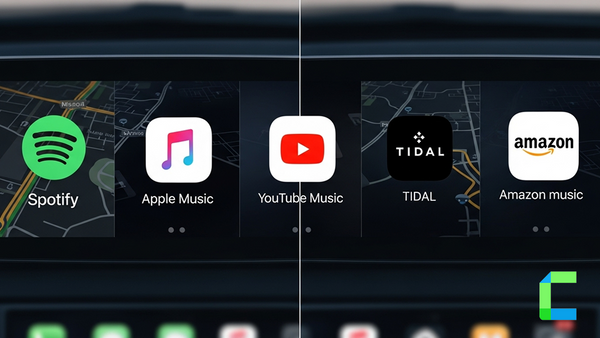
You can install supported apps directly from the App Store. Popular CarPlay apps include:
- Google Maps
- Waze
- Spotify
Once installed, apps automatically appear in the CarPlay dashboard if supported.
Hardware Solution to Add More Apps
AI boxes allow users to unlock additional features on CarPlay without jailbreaking an iPhone.

Carlinkit Ai Box
Carlinkit is a famous brand of CarPlay upgrades. This adapter can enable playing DRM content, including Netflix, YouTube and TikTok etc on CarPlay screen. If you are interested in watching video-based content on Apple CarPlay, this is one of the methods.
- Enables YouTube, Netflix, TikTok, etc on Apple CarPlay
- Supports cars with built-in CarPlay
- Automatic connection after the initial connection
- Works with iPhone 6s to the latest iPhone models
- Supports from iOS 10 to iOS 18 and all of the subversions
| Pros | Cons |
|---|---|
| More affordable than many premium AI boxes | Requires stable internet for streaming apps |
| Good for media streaming during parking | Requires wired CarPlay |
| Reliable automatic reconnection | |
| Easy installation process |

Ottocast Ai Box
Ottocast AI Box is another AI box that allows to add more apps on CarPlay screen. No need of jailbreaking iPhone and can play YouTube, Netflix and other video content on CarPlay.
- Enables YouTube, Netflix, TikTok, etc on Apple CarPlay
- Supports cars with built-in CarPlay
- Automatic connection after the initial connection
- Works with iPhone 6s to the latest iPhone models
- OTA update system (over the air)
| Pros | Cons |
|---|---|
| Smooth Android-based interface | Only works with cars that already have wired CarPlay |
| Supports multiple streaming apps | Higher price compared to standard adapters |
| Wireless connectivity reduces cable clutter | |
| Easy plug-and-play installation |
Software Solution to Add More Apps
WheelPal
WheelPal is a sideloaded app store, installed via an AltStore profile rather than the App Store. It gives you apps like CarPlay++ and CarMovie for entertainment and video streaming on CarPlay, no jailbreak required.
Jailbreaking may:
- Void Apple warranty
- Reduce device security
- Cause software instability
Users should proceed carefully and understand the risks before modifying their devices.
Common Problems & Fixes
CarPlay Not Connecting
Fixes:
- Restart your iPhone and car infotainment system
- Use an Apple-certified USB cable
- Enable Siri on your iPhone
- Update to the latest iOS version
Wireless CarPlay Not Working
Fixed:
- Turn Bluetooth and Wi-Fi off and on again
- Remove the car from Apple Car Play settings and reconnect
- Make sure wireless CarPlay is supported by your vehicle
Apps Not Showing on CarPlay
Fixes:
- Go to:
Settings > General > CarPlay
- Select your car
- Tap Customize
- Add or rearrange supported apps
CarPlay Keeps Disconnecting
Fixes:
- Replace damaged USB cables
- Disable Low Power Mode
- Update your car firmware if available and check Carplay settings
Conclusion
Apple CarPlay is really helpful when you are driving. It makes driving safer and more convenient for Apple CarPlay users, it gives you access to things like navigation and calls and music and messaging and other Apple CarPlay supported apps right from the car dashboard.
Stay connected with CarPlayHacks for the latest Apple CarPlay setup guides, wireless adapters, AI box reviews, troubleshooting tips, and CarPlay app solutions.
For safety reasons drivers should not use video streaming while driving. They should avoid distracting apps too. Features like YouTube and Netflix should only be used when the vehicle is parked.
FAQ About How to Set Up CarPlay
Faulty USB cable
Disabled Siri
Outdated iOS version
Bluetooth or Wi-Fi connection issues
Unsupported vehicle system
Settings > General > CarPlay
and select your vehicle.