

Last Updated: June 2026
CarPlay stops working in a few predictable ways. The screen goes black. It connects then immediately drops. It refuses to show up at all. Or it worked fine yesterday and today it just doesn't.
This guide covers every common CarPlay failure pattern, in order from the fastest fixes to the more involved ones. Work through them top to bottom and you will find your issue.
How We Tested
We tested CarPlay troubleshooting steps across multiple vehicles and iPhone models to verify which fixes actually work and in what order they are most effective.
- Devices tested: iPhone 13, iPhone 14 Pro, iPhone 15, iPhone 16 Pro Max
- iOS versions: iOS 17.7, iOS 18.5, iOS 26 beta
- Connection types: Wired USB-A and USB-C, wireless built-in head unit, wireless adapter
- Head units tested: Factory units across Toyota, Honda, BMW, and Ford
- Test duration: Ongoing since iOS 17
The Fast Fixes (Start Here)
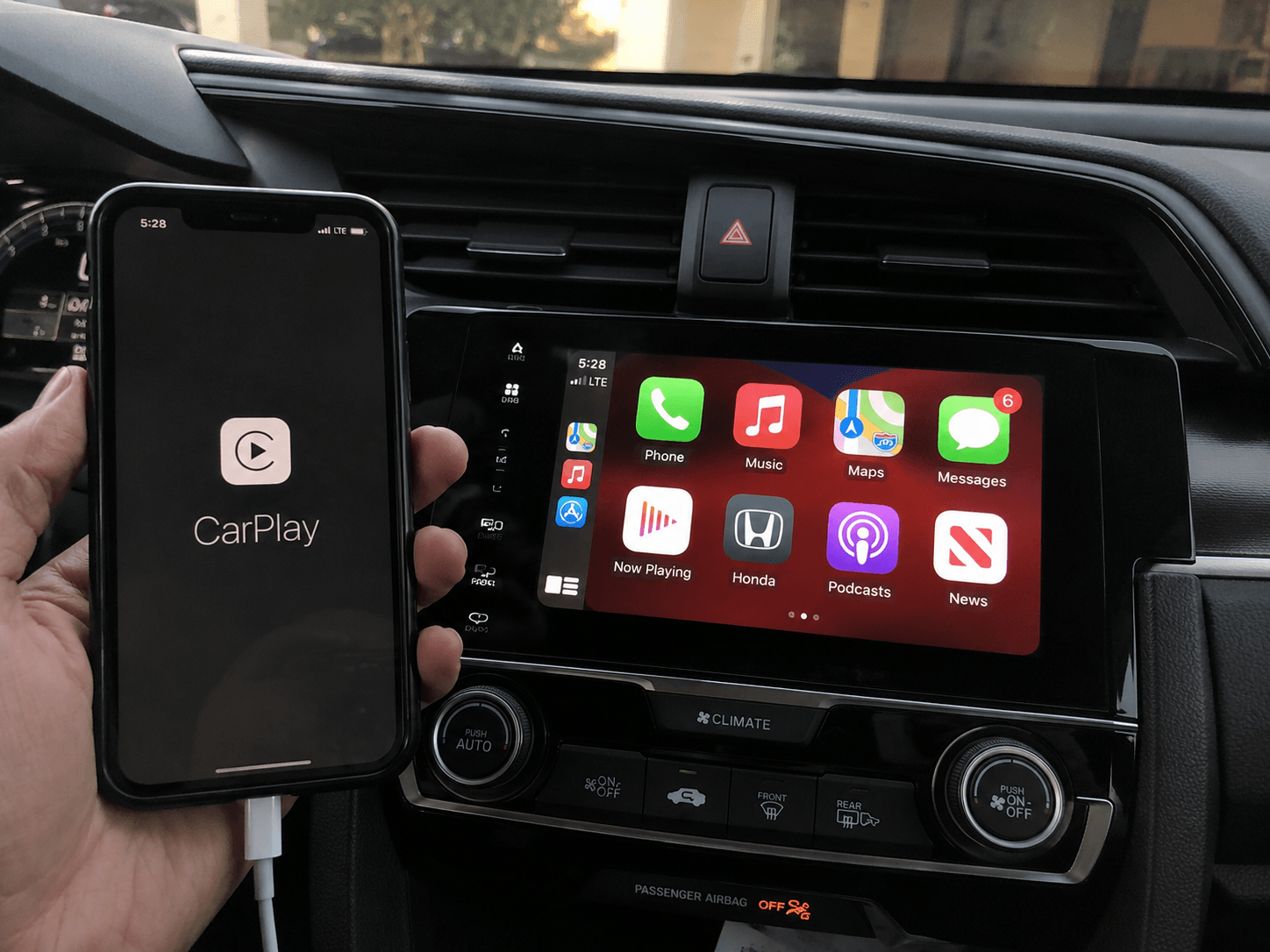
Before going deep on any specific issue, run through these three steps. They resolve the majority of CarPlay problems.
Step 1: Restart both devices. Turn off your iPhone and restart your car's infotainment system. On most head units this means holding the power button for 10 seconds or pulling the key out and waiting 30 seconds. A cold restart clears temporary connection state that a normal reconnect does not.
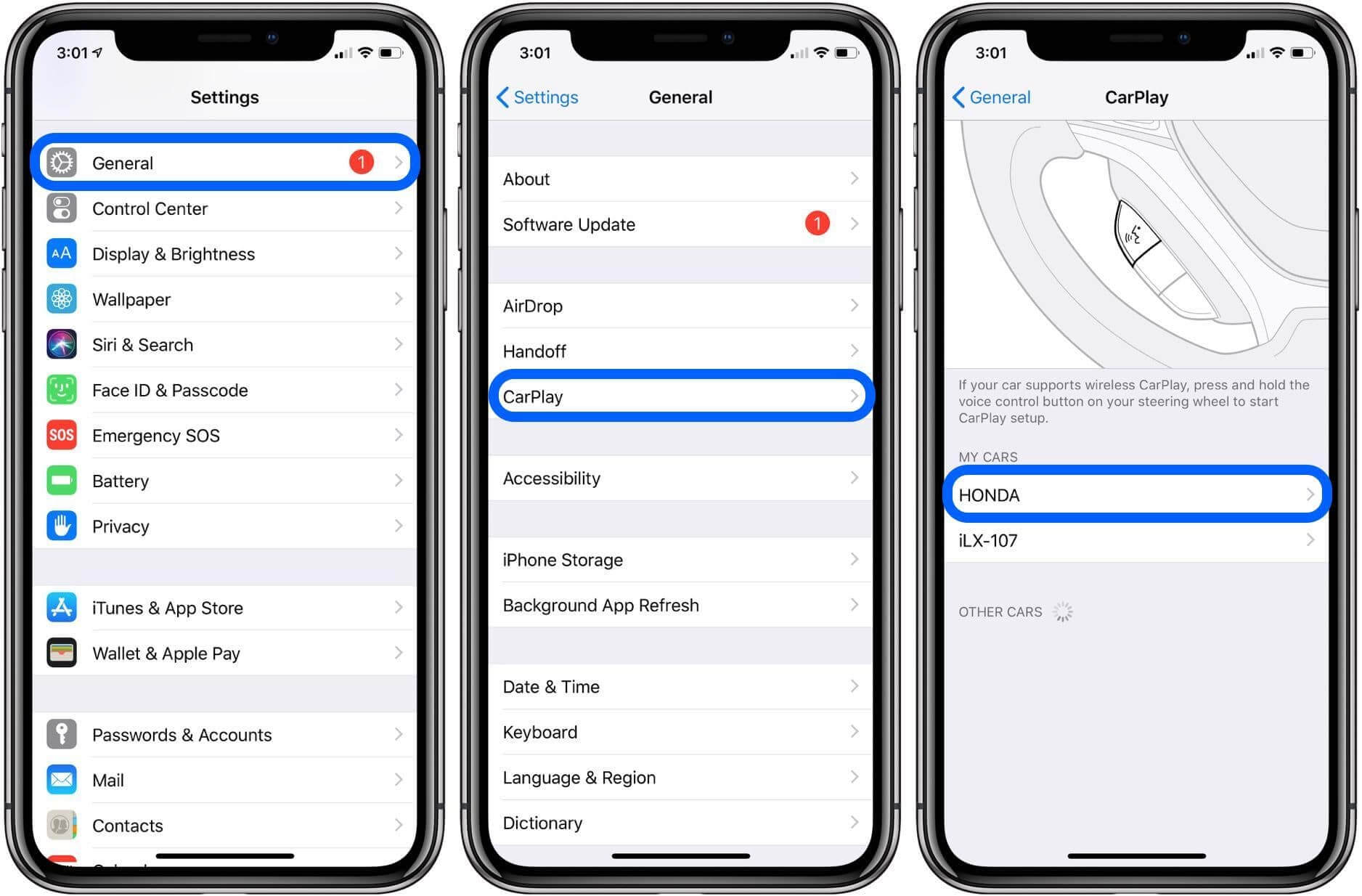
Step 2: Forget and re-pair CarPlay. Go to Settings > General > CarPlay on your iPhone. Tap your car's name, then tap Forget This Car. Also go into your head unit's Bluetooth settings and delete the iPhone pairing there. Then reconnect from scratch. This resolves the majority of "CarPlay was working but suddenly stopped" situations.
Step 3: Check that CarPlay is not restricted. Go to Settings > Screen Time > Content and Privacy Restrictions > Allowed Apps. Make sure CarPlay is toggled on. iOS updates occasionally reset this.
If those three steps did not fix it, continue to the specific issue below that matches your situation.
CarPlay Won't Connect at All
This is where to start if CarPlay has never worked on this vehicle, or if it stopped recognising the connection entirely.
Check CarPlay is enabled on your iPhone: Go to Settings > General > CarPlay. If your car is not listed, it has not been paired. For wireless, long-press the voice control button on your steering wheel to start pairing mode. For wired, plug in and your iPhone should prompt you.
Check Siri is enabled: CarPlay requires Siri to function. Go to Settings > Siri and Search and make sure "Press Side Button for Siri" is on.
Try a different USB port: Many cars have multiple USB ports but only one supports CarPlay data transfer. The others are charge-only. Try every port in your vehicle.
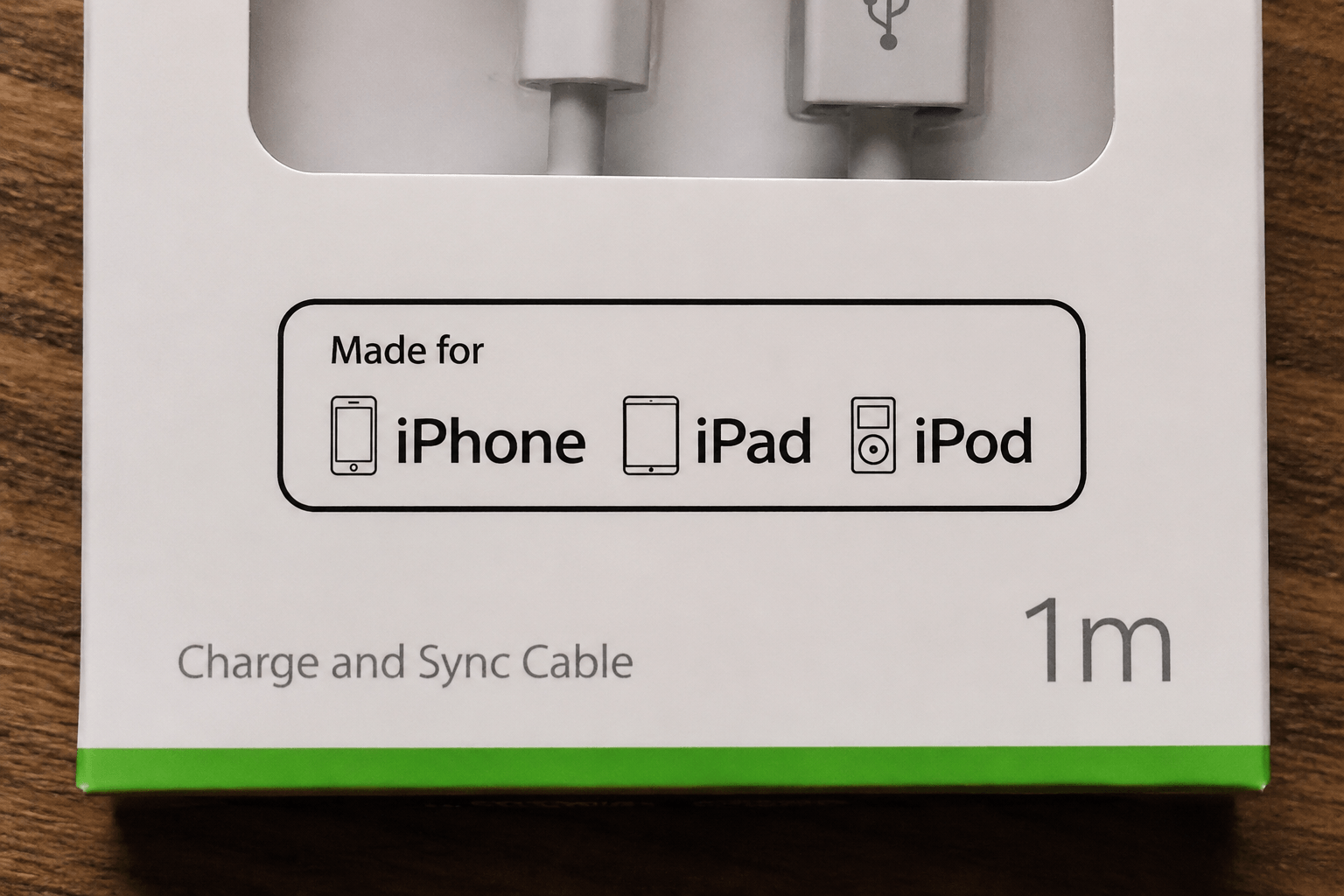
Try a different cable: This is the most commonly overlooked fix. Cheap or third-party cables frequently carry power but fail on data transfer. Use an Apple-certified (MFi) cable. In our testing, a $6 third-party cable caused intermittent CarPlay failures that stopped immediately when we switched to a certified cable.
CarPlay Keeps Disconnecting
Intermittent disconnections during a drive usually point to one of three causes: a marginal cable, a wireless interference problem, or a conflict introduced by an iOS update.
For wired disconnections: The cable is the first suspect. Wiggle the connector gently while CarPlay is active. If it cuts out or flickers, the cable is the problem. Replace it with an MFi-certified cable.
If the cable is fine, try the other USB ports in the car.
For wireless disconnections: Wireless CarPlay runs on 5GHz WiFi between your iPhone and the head unit. The connection is more sensitive to interference than most people realise, a busy parking lot with dozens of active WiFi networks can cause dropouts.
Check that your iPhone's WiFi and Bluetooth are both enabled. Both are required for wireless CarPlay. Go to Settings > WiFi and Settings > Bluetooth and confirm they are on - not just accessible from Control Center, but actually enabled in settings.
If wireless CarPlay consistently drops or stutters and your head unit is more than three or four years old, the issue is often the head unit's wireless chip rather than your iPhone. Older factory wireless systems were built before the 5GHz band was as congested as it is today.
A dedicated wireless adapter removes this variable entirely. A purpose-built adapter handles the 5GHz connection independently of the head unit's aging radio. We have tested several and the difference on older head units is significant - what was a 30-second reconnect loop becomes a stable, sub-10-second connection every time.

Read more about Wireless Carplay
For disconnections after a specific iOS update: Go to Settings > General > CarPlay, forget the car, update your head unit firmware if one is available, then re-pair. iOS updates occasionally change the CarPlay handshake in ways that require a clean re-pair to resolve.
CarPlay Black Screen or Frozen Display
A black screen after connecting usually means CarPlay launched but the display signal failed. A frozen display is a different problem - CarPlay is running but the head unit stopped rendering updates.
For black screen:
- Disconnect and reconnect the iPhone.
- Restart the head unit. Do not just tap the CarPlay icon; perform a full restart.
- On your iPhone, go to Settings > General > CarPlay, forget the car, and re-pair.
- Check if your head unit has a firmware update available.
For frozen display:
- Force-close any apps running on CarPlay by pressing and holding the home button on the head unit, if available, or restarting the infotainment system.
- On your iPhone, go to Settings > General > CarPlay and check that your car is still listed. Sometimes a stale entry causes rendering issues.
If the black screen happens every time on a specific app (Waze, Google Maps, Spotify), the issue is that app, not CarPlay. Delete and reinstall the app, then test again.
CarPlay Not Working After an iOS Update
iOS updates are the most common trigger for sudden CarPlay issues. The fixes are usually straightforward.
iOS 26 CarPlay Issues
iOS 26 introduced a redesigned CarPlay interface. The most reported issue is a layout mismatch on older head units - the new interface renders differently on screens that were calibrated for the previous CarPlay design.
If you updated to iOS 26 and CarPlay now looks wrong or is unresponsive in certain areas: forget and re-pair the connection. In our testing this resolved the display issue on every head unit we tested it on.
iOS 26 also changed how CarPlay handles background app refresh. If apps are disappearing from your CarPlay screen after a few minutes, go to Settings > General > Background App Refresh and make sure it is enabled for the apps you use in CarPlay.
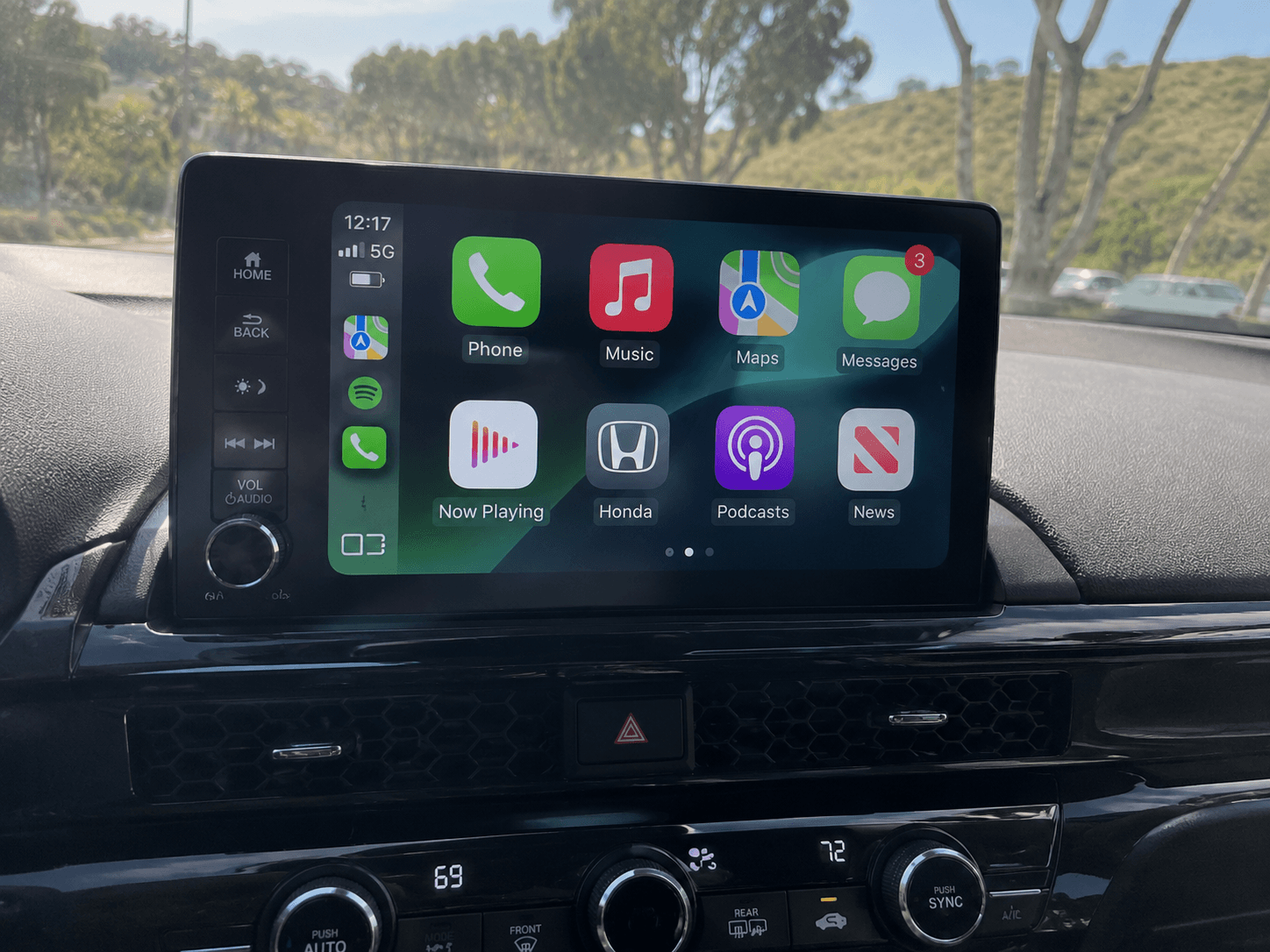
iOS 18 and iOS 18.5 CarPlay Issues
The most widely reported iOS 18.5 issue is cluster integration: after updating, the currently playing audio no longer shows on the instrument panel in some vehicles. This is a known issue and Apple has not released a fix as of June 2026. The workaround is to check for a head unit firmware update from your car manufacturer.
Some iOS 18 users also reported CarPlay failing to launch on the first connection attempt after a cold start, requiring two or three reconnection attempts. Forget and re-pair the connection to resolve this.
iOS 17 CarPlay Issues
iOS 17 was stable for CarPlay overall. If you are still on iOS 17 and experiencing issues, the most likely cause is an outdated head unit firmware. Check your car manufacturer's support site for updates.
Earlier iOS Versions (iOS 16 and below)
CarPlay issues on iOS 16 and earlier are almost always resolved by updating to a current iOS version. Apple's CarPlay bug fixes are cumulative - staying on an old iOS version means carrying unpatched issues. If you cannot update due to device compatibility, the standard troubleshooting steps (restart, forget and re-pair, check restrictions) apply.
CarPlay Issues with Siri
Siri is required for CarPlay to function. If Siri is responding slowly or not at all:
- Confirm Siri is enabled: Settings > Siri and Search.
- Check your internet connection. Siri needs a live connection for most commands.
- Enable Siri when locked: Settings > Siri and Search > Allow Siri When Locked.
- If Siri works on your iPhone but not through CarPlay, forget and re-pair the CarPlay connection.
VPN Interference
This is less obvious but surprisingly common. Active VPN connections on your iPhone can interfere with the WiFi channel CarPlay uses, causing connections drops or preventing CarPlay from launching.
If you use a VPN on your iPhone, try disabling it before connecting CarPlay. If CarPlay works with the VPN off, the VPN is the cause. Check your VPN app's settings for a split-tunneling option that excludes local network traffic - this usually resolves the conflict without disabling VPN entirely.
Preventing CarPlay Issues
A few habits that keep CarPlay reliable long-term:
- Do not rush iOS updates. Wait two to three weeks after a major iOS release before updating. Most CarPlay bugs introduced by updates are patched in the subsequent point release.
- Keep your head unit firmware current. Car manufacturers release firmware updates that address CarPlay compatibility. Check your manufacturer's support site every few months.
- Use a certified cable. If you use wired CarPlay daily, invest in a quality MFi cable. It is the single component most likely to cause intermittent failures.
- Re-pair after major iOS updates. After any major iOS version update, forget and re-pair your CarPlay connection as a precaution. It takes 60 seconds and prevents the majority of post-update issues.
Still Not Fixed?
If you have worked through everything above and CarPlay is still not functioning, the issue is likely specific to your head unit or vehicle configuration. Contact Apple Support or your car dealership's service department. Bring a note of your iPhone model, iOS version, and the specific failure behaviour - it will speed up diagnosis significantly.