

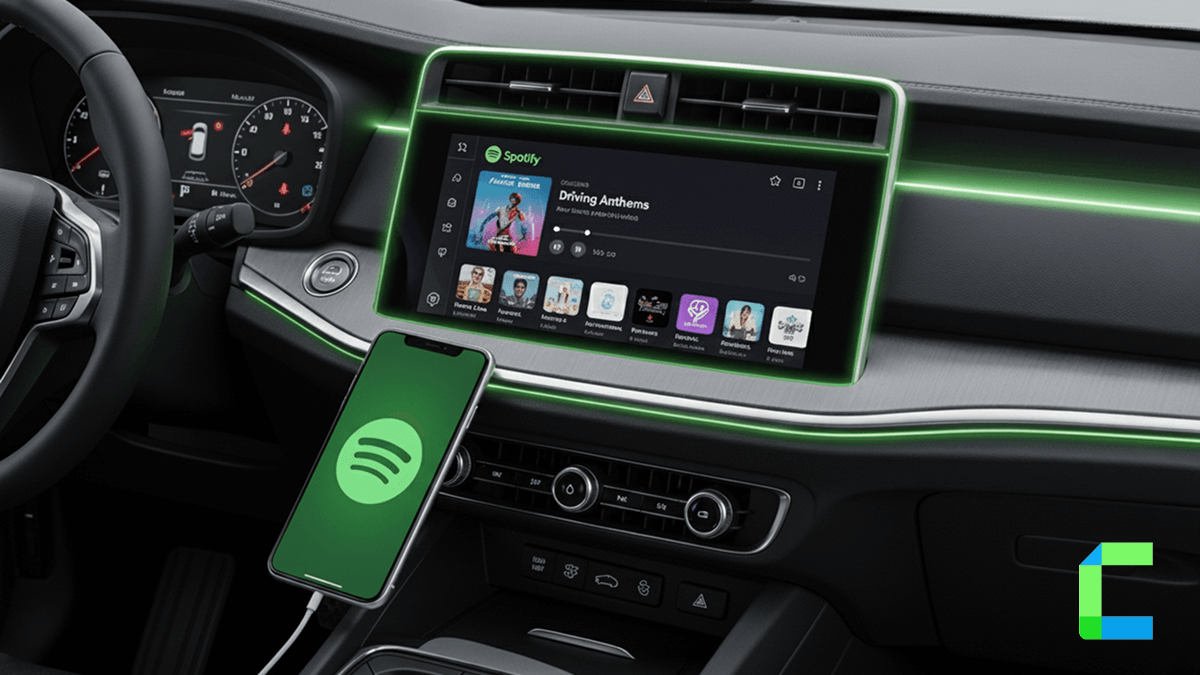
If you are looking for an official music entertainment app for your CarPlay, then you at right place. Spotify is music app that officially supported can to your Apple CarPlay. In this article you will discover the methods to add Spotify, features, troubleshooting and finally solutions to add more apps to your CarPlay.
Let's Play Spotify on Apple CarPlay!!
How add Spotify quickly,
Wired Method
Wireless Method
How to Add Spotify on CarPlay?
Spotify on CarPlay Issues & Fixes?
Workarounds to Add Any App on CarPlay?
How to Add Spotify on Apple CarPlay
As recodes of early 2026, 751 million users are using spotify and they have over 290 million premium users. They have more than 100 million songs and podcast. So, you can get best music entertainment experience by using Spotify CarPlay.
- Open Bluetooth in your vehicle or direct into wireless pairing mode to connect your car with your iPhone. Or connect your iPhone with your car using USB cable.
- Then you have to pair your iPhone with your car’s CarPlay. To do this, open Settings on your iPhone, and next, General> CarPlay> Available Cars
- Now you will see cars available to connect. Choose your vehicle from the list to start connecting.
- Then tap on customize to add Spotify app to CarPlay home screen.
- Now you are ready to go! Open Spotify on your CarPlay. And play your favorite music.
- Also use Siri voice assistance to play music on Spotify.
Simply say “Hey Siri, play music on Spotify”
Siri will start opening app. Select your songs from the list and all done!
CarPlay Spotify Features
You already know almost all the features you will get as a Spotify user. However, do you know what’s new on Spotify in CarPlay? So, we got altogether here as CarPlay Spotify features.
- User friendly interface
While driving, you should need safe access to the car screen. Bigger menu icons on CarPlay screen gives you the convenience of using your Car screen while driving. As Apple CarPlay always works forward to ensure their users safety, these bigger icons in Spotify, larger texts and easy shortcuts makes you feel comfortable with less distraction.
2. Siri voice control
It’s not new to an iPhone user using Siri voice assistance. You know the ease of accessing Siri while your hands are busy. It lets you easily access your favorite music with Hey Siri, or with just Siri! It’s easy, safe and convenient.
3. Seamless integration
Apple CarPlay and Spotify are popular worldwide services and most importantly these two connects with each other seamlessly. If you have never tried Spotify on CarPlay just use it and experience the smooth music streaming while driving.
4. Personalized music streaming experience
Spotify users has created more than 4 billion playlists on Sportify. You can choose playlist from them, or you can create playlist as your favour. So, by using Spotify on CarPlay you can get personalized music or podcast experience.
5. Offline listening
While drive you may lose signal sometime and stop your playlist, but now you don’t have to worry about it anymore. Spotify have offline playlist facility. You can download you playlist.
6. Podcasts and audiobooks
Not a music fan all the time? Let some podcasts make you fresh. Spotify gives you variety of podcasts and audiobooks to listen at anytime.
Spotify on CarPlay Issues and Fixes
While driving, have you ever got into trouble while playing CarPlay Spotify? If yes, let us know whether you got the same fix as us.
- Not playing the whole song
- Make sure whether your USB cables are connected to each other.
- Check if your Spotify subscriptions are paid on time.
- Check if your mobile data plan has enough data to download/ play music.
- Make sure that you are travelling an area where there are strong mobile signals.
2. Connection Errors
- Make sure that your iPhone is perfectly fitted to your CarPlay with the USB cable. If not use wireless connections to connect your iPhone with CarPlay.
- While you are travelling make sure that your mobile data plan has enough package with you. While travelling through areas where is poor signals you can pre download your play lists on Spotify. Offline streaming comes here to save you.
3. App Crashing
- Clearing Spotify app cache will also help you to clear some space in your device. to do that, you can follow this.
Open Setting on your iPhone.
Tap General> iPhone Storage> Spotify > Offload apps
Other tips to enjoy Spotify on CarPlay with less distractions
- Turn off Low Power Mode
Setting> Battery> Low power mode
- Enable CarPlay’s background activity
Sittings> General> CarPlay> Allow CarPlay While Locked
Following shows the recommended methods to add more apps to CarPlay, This is for additional knowledge as a CarPlay user you must know!!
Add Any App to Apple CarPlay
Some vehicles are not compatible with some apps originally. Like Waze on Tesla, YouTube on Benz and many more. To avoid this, you can use third party apps or Apple CarPlay adapter to your CarPlay. With that you can access so many apps that originally not supported to CarPlay.
Hardware Solution

T2C wireless carlinkit adapter.
You can use this adapter to access map, messages, music apps on Tesla. This adapter is compatible with both android Auto and Apple CarPlay.
- Compatible with Tesla Model 3/Y/S/X
- Compatible with iOS 10 to iOS 18.5
- User-friendly box design
- Lag free smooth connection
- Voice command support
- Connect automatically after first connection
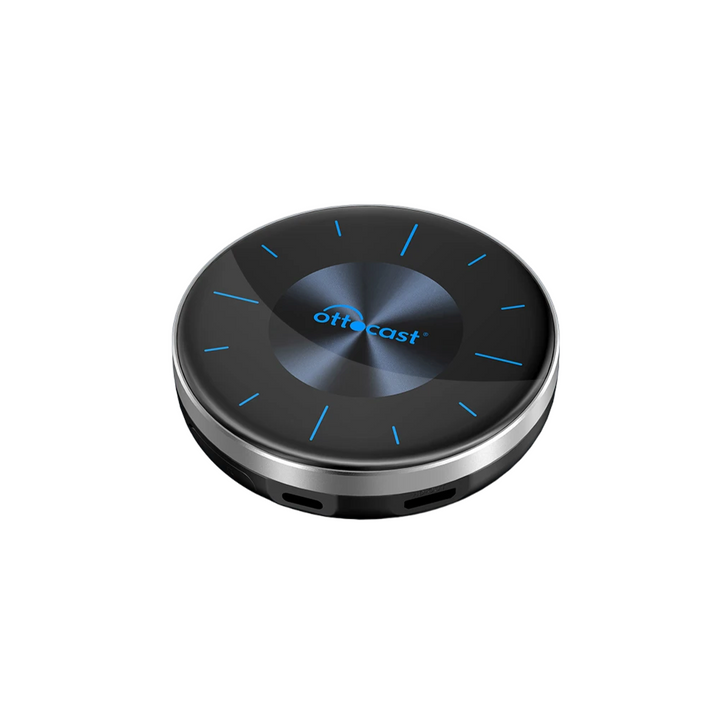
Ottocast Wireless AI Box
With this adapter you can directly access Play Store and install specific app you need. But you need factory wired CarPlay and Touchscreen on your vehicle. On my experience this is adapter is compatible with 97% cars made after 2017 and this one is lag free than other adapters.
- 8GB Ram+ 128GB ROM can exponible up to 256GB
- Mini HDMI output support to 1080p HD video
- Plug and play physical installation
- Lag free smooth connection
- Compatible with iPhone 6 to iPhone 16 pro max
Software Solution
Here I have listed the best solutions to add more apps to apple CarPlay. Following shows the software solution to add apps to CarPlay. WheelPal is a software that can help to add more apps to CarPlay.
Note: To use WheelPal App you must jailbreak your phone. It may be danger.
In my opinion, buy CarPlay wireless adapter or Ai box. Because it may be costly, but it is safe way than jailbreak than phone.
How to Add Any App on CarPlay using WheelPal
- Install the WheelPal app following above guide
- Connect iPhone to the CarPlay
- Go to the WheelPal app and enter the iPhone model ( on your phone)
- Select the app you want to add to the CarPlay
- If the iPhone is compatible, it will guide you through.
Another option instead of WheelPal is CarMovie. For further details, check out their official CarMovie site.