

Last updated: September 2026
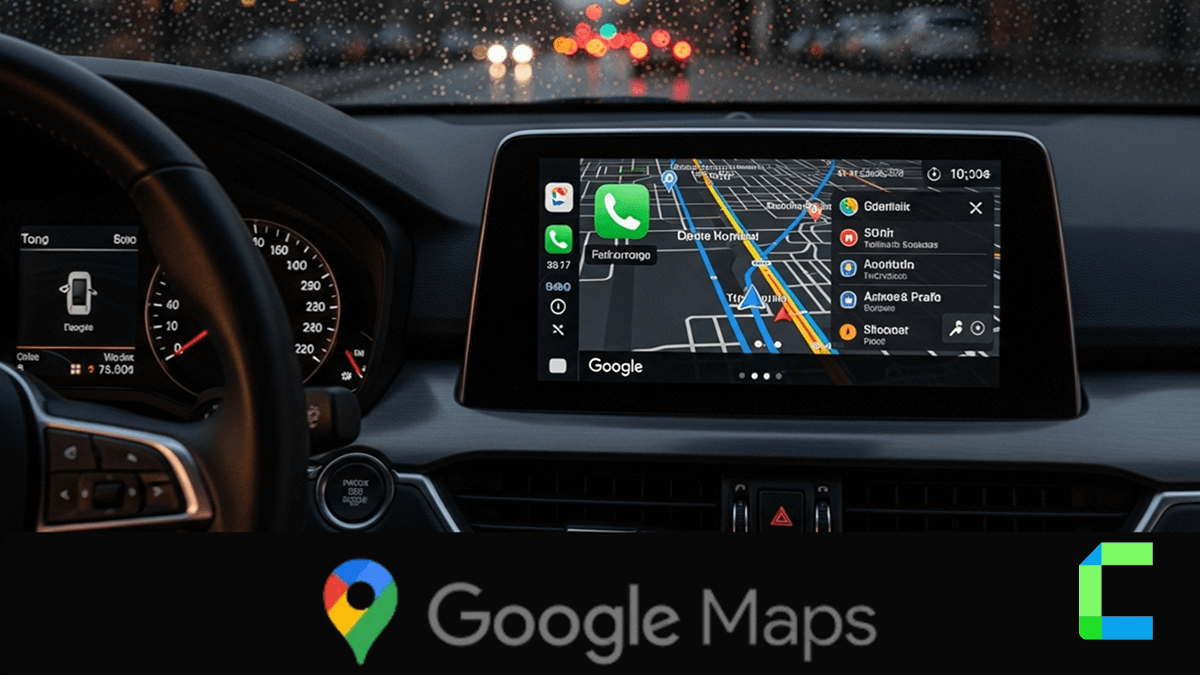
To get satellite view on Google Maps in Apple CarPlay, tap the map screen, select the settings gear icon, and choose the satellite map option. Google Maps is the only major CarPlay navigation app that offers this feature. Apple Maps does not currently support it. This guide covers satellite view, Siri voice commands, and fixes for the most common Google Maps issues on CarPlay in 2026.
How Do I Get Satellite View on Google Maps on Apple CarPlay?
Tap the map screen in CarPlay to bring up the top menu, then select the gear icon and choose the satellite map option. Your view switches immediately to high resolution aerial imagery. Use the on-screen controls to zoom in and see more detail around your route. This is especially useful when driving off-road or in rural areas where landmarks are easier to spot from above. Satellite imagery is not a live video feed, so vehicles and temporary changes will not appear in real time.
Does Apple Maps Have Satellite View on CarPlay?
No. Apple Maps does not support satellite view on CarPlay, while Google Maps does. This is one of the main reasons drivers switch to Google Maps for CarPlay navigation. Apple likely leaves this feature out to reduce data usage and keep a simpler visual design. If satellite imagery matters to you, Google Maps is the only built-in option that delivers it right now.
Why should I use Google Maps for Apple CarPlay?
Many drivers prefer Google Maps because it provides highly accurate traffic information and extensive global map coverage. It helps you reach your destination faster by offering multiple route options and reliable arrival time predictions based on live data. The app constantly analyzes road conditions to show congested areas in red, moderate traffic in orange, and clear roads in green. This allows you to avoid unexpected jams and choose the most efficient path for your daily commute or long distance travel.
Google Maps also excels in providing detailed points of interest. Its massive database makes it easy to find specific gas stations, local restaurants, or electric vehicle charging stations directly through the car interface. Unlike some other navigation tools, it allows for multi-stop routes, which is perfect for trips that require several waypoints along the way. Frequent updates ensure that the maps and features remain current and reliable for all users.
The application includes helpful features like lane guidance and speed limit alerts. Lane guidance shows you exactly which lane to stay in on complex highways or intersections, which helps prevent missed exits. Speed limit alerts display the current legal limit on your screen to help you drive safely and avoid potential fines. These combined features make Google Maps a powerful and personalized driving assistant for any journey.
How to add Google Maps to Apple CarPlay?
Download Google Maps from the App Store, make sure it is updated, then connect your iPhone to CarPlay by cable or wirelessly through Bluetooth and Wi-Fi. Google Maps appears on your CarPlay home screen automatically once connected. For the complete step-by-step setup, plus a comparison against Waze and Apple Maps, see our full Google Maps on CarPlay guide.
How to get a wired connection?
To establish a wired connection, plug your iPhone into the car USB port using a certified Lightning or USB cable. Using an Apple certified cable is highly recommended to avoid connection drops or data errors. The CarPlay interface should launch automatically on your vehicle display once the cable is connected. You can then find the Google Maps icon on the home screen and tap it to start navigating to your destination.
How to get a wireless connection?
For a wireless connection, you must first enable both Wi-Fi and Bluetooth on your iPhone. Navigate to the CarPlay settings on your car infotainment screen to begin the pairing process with your device. On your iPhone, go to Settings, then General, and select CarPlay to find your specific vehicle in the list. Once you allow the connection and pair the devices, the map interface will display on your vehicle screen without the need for cables.
Satellite view: Apple Maps vs Google Maps on CarPlay
Apple Maps does not support satellite view on CarPlay, but Google Maps does support this feature. This is a major distinction for drivers who prefer high resolution aerial imagery over standard 2D or 3D map graphics. Google provides this functionality to help users identify local landmarks and understand the surrounding terrain more clearly. Apple likely excludes this feature to minimize data usage and maintain a simpler visual design for drivers.
To enable satellite view, tap the map screen in CarPlay to reveal the top menu or the settings gear icon. Select the gear icon and then choose the satellite map option from the list to change your view immediately. You can then use the on-screen controls to zoom in and see more detail of the area around you. This feature is particularly useful when you are driving off-road or in rural areas where landmarks are easier to spot from above. Keep in mind that satellite imagery is not a live video feed, so vehicles and temporary changes may not appear in real time.
How do I use Siri with Google Maps on Apple CarPlay?
Siri voice commands allow you to control your navigation hands-free so you can keep your focus on the road. You can activate the assistant by pressing the voice button on your steering wheel or saying Hey Siri. This feature ensures that you do not need to touch your phone or the car screen while driving. Using voice commands is the safest way to find new destinations or adjust your route while in motion.
To ensure Siri uses the correct app, you must specify that you want to use Google Maps in your request. If you do not mention the app name, the system will often default to Apple Maps for your directions. You can use various command patterns to get exactly what you need while you are behind the wheel.
Try using these common voice command examples:
- “Hey Siri, get me directions to the nearest gas station using Google Maps.”
- “Hey Siri, drive me to work with Google Maps.”
- “Hey Siri, how long will it take to get to the airport on Google Maps?”
- “Hey Siri, check traffic via Google Maps.”
- “Hey Siri, show me alternate routes in Google Maps.”
- “Hey Siri, reroute to avoid tolls with Google Maps.”
Troubleshooting Google Maps Issues on Apple CarPlay.
Google Maps not showing on CarPlay
- Verify the app is enabled: Settings > General > CarPlay > select your vehicle
- Drag the Google Maps icon to the top of the list so it shows on the first page
- Make sure your iPhone software is fully up to date
App freezing or crashing
- Update Google Maps from the App Store
- Restart both your iPhone and your vehicle's infotainment system
- If it keeps crashing, delete and reinstall the app to clear corrupted data
CarPlay Connection issues.
- Wired CarPlay: Try Different cable. (Apple-certified recommended)
- Wireless CarPlay: Delete the pairing and reconnect
- Restart both your iPhone and your car information system
No voice direction.
- Turn up car volume while direction is speaking
- Check the mute button in Google Map
- Verify "Play voice over Bluetooth" or "Play voice during calls" is enabled in app settings
Wrong or lost GPS signal
- Make sure your phone has a clear view of the sky, not in a glovebox or near metal.
- Disable Low Power Mode, which can reduce GPS accuracy.
- Turn Location Services off and on again in Privacy settings to force a reset.
How to Add any App to Apple CarPlay
WheelPal App
Apple does not officially support some applications on CarPlay, including video streaming apps like YouTube or Netflix. Wheelpal allows you to download third party apps like CarBridge,CarTube,NGXPlay which gives you access to video streaming apps like YouTube,Netflix and many more. It is super easy to download and requires no Jailbreaking.
Carlinkit AI Box

Features
- Supports Car with built in CarPlay
- Automatic connect after the initial connection
- Work with iPhone 6 to latest versions
- Support iOS 10 to latest
Pros and Cons of Carlinkit AI Box
| Pros | Cons |
|---|---|
| Works with most vehicle models | Performance depends on hardware specifications |
| Enables streaming apps | |
| No need to Jailbreak your iPhone |
MMB AI Box

Features
- Enable video streaming apps
- Support iPhone 6 to 16 series
- Automatic connection after the initial connection
- Compatible with iOS 10 to 18.5
Pros and cons of MMB AI Box
| Pros | Cons |
|---|---|
| Excellent multimedia support | Some compatibility issues with older vehicles |
| Compatible with many vehicle models |
Final Thoughts
Using google maps on apple carplay provides a versatile and data rich navigation experience for any driver. Whether you choose a simple wired connection or an advanced wireless AI box, the key is to find the setup that fits your needs. You can enjoy detailed satellite views and hands-free Siri control to make your journeys more efficient. Always prioritize safe driving by setting up your routes before you start moving and avoiding distractions while on the road.
Google Maps and Apple CarPlay may vary depending on your iPhone model, iOS version and vehicle model. Always you must prioritize safe driving and avoid interacting with the screen while driving.