

Last Updated: August 2026
Key Takeaways
- System Integration: Apple Maps offers the deepest integration with Siri, your calendar, and your contacts.
- Traffic Accuracy: Google Maps uses data from millions of users to provide superior predictive traffic modeling.
- Road Hazards: Waze is the leader for real time alerts on speed traps, police presence, and road debris.
- Setup: Connection is possible through an MFi certified USB cable or wireless pairing via Bluetooth and Wi-Fi.
- iOS 26 Updates: Recent enhancements include a Liquid Glass interface, multitouch gestures like pinch to zoom, and improved widget customization.
Apple Maps vs. Google Maps vs. Waze on CarPlay
Apple Maps: The Integration Leader
Apple Maps is best for users who want a clean interface and seamless connection to the iPhone ecosystem. It automatically suggests destinations based on upcoming calendar appointments and recent text messages.
- Pros: Minimalist design, parked car indicator, and the most accurate alerts for red light cameras.
- Cons: Limited settings customization compared to rivals. No satellite view on CarPlay, unlike Google Maps, though satellite view is available in the standalone iPhone app.
- Multi-stop Routing: Supports up to 14 waypoints.
Google Maps excels in urban navigation and long distance planning. It provides detailed 3D mapping of buildings and crosswalks to make complex intersections easier to navigate.
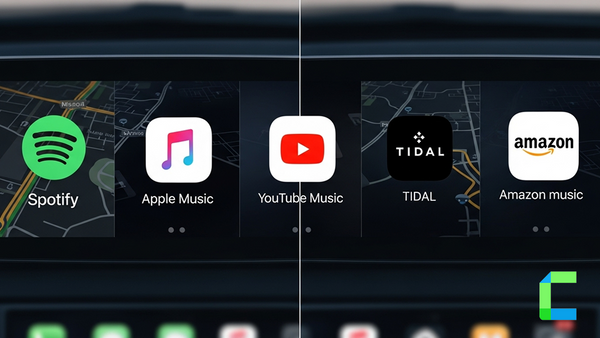
- Apple Music - subscription only, no permanent free tier. Trial only.
- Spotify Free - full CarPlay support with ads, no subscription needed
- Amazon Music Free - ad-supported tier works on CarPlay for Prime and non-Prime users
- YouTube Music Free - ad-supported, only reaches CarPlay through a wireless adapter like Carlinkit AI Box
- BBC iPlayer Radio - completely free, works via WheelPal or Carlinkit AI Box
Waze: The Community Specialist
Waze is the top choice for avoiding traffic jams and speed traps. It relies on a massive community of drivers to report road hazards in real time.
- Pros: Includes a live speedometer and allows for highly customized voice navigation, including the ability to record your own voice prompts.
- Cons: The interface can feel cluttered and visually overwhelming for some drivers. Waze does not support offline maps.
For a full setup walkthrough, see Google Maps on CarPlay and CarPlay Waze.
How to Get Google Maps or Waze on CarPlay
Native iOS Method
If you are running iOS 13 or higher, you do not need special software to use these apps. Simply download Google Maps or Waze from the App Store. Once installed on your iPhone, the icons will automatically appear on your CarPlay home screen.
Advanced Control and Customization
For users who want to bypass Apple's standard interface limitations, there are two main paths:
Jailbreak Solutions: CarBridge requires a jailbroken device to run. Tools like CarBridge and NGXPlay allow you to run almost any iPhone app on your dashboard once jailbroken, which removes Apple's security restrictions. All of these solutions and more can be downloaded through the WheelPal App.
No Jailbreak Options: Try out the hardware solutions to not just download Google Maps and Waze but also many more applications that seems impossible with Apple CarPlay the best Ai boxes and Wireless adapters guides will help you pick the perfect hardware solution.
Common CarPlay Maps Problems
Connection Drops
About 70% of connection failures are caused by faulty or non certified USB cables. Always use an MFi certified Lightning or USB-C cable to ensure a stable connection. For wireless users, disabling VPNs and Focus Modes can often resolve interference issues.
Battery Drain
Wireless CarPlay is a heavy power consumer because it uses Wi-Fi and Bluetooth simultaneously. Apple Maps has been specifically flagged by users for causing significant battery drain even when navigation is not active. To fix this, switch to a wired connection or use Google Maps.
GPS Drift
In certain vehicles, such as the Toyota RAV4, the GPS location may jump 20 to 30 meters away from your actual position. This is typically a wireless interference issue. Switching to a wired connection or resetting your iPhone network settings usually corrects the drift.
How we tested: We ran Apple Maps, Google Maps, and Waze on CarPlay using an iPhone 13 Pro Max on iOS 26.5. All three apps connected and navigated without issue during testing.
What's New for CarPlay Maps in iOS 26
The iOS 26 update introduces the Liquid Glass design language, which uses reflective effects to improve visual hierarchy and map readability.
- Multitouch Gestures: Compatible vehicle displays now support pinch to zoom and pan gestures, matching the native iPhone experience.
- Expanded Widgets: You can now add persistent information tiles to your dashboard for weather, sports scores, and delivery tracking.
- Apple Intelligence: Siri now provides contextual suggestions, such as automatically pulling up directions to a coffee shop you frequent at a specific time of day.
Optimizing your CarPlay experience starts with picking the right map for your specific driving needs. Whether you prefer the clean integration of Apple Maps, the detailed data of Google Maps, or the community alerts of Waze, the system is more flexible than ever. For those who want to unlock even more apps without the risks of jailbreaking, WheelPal remains the top recommendation.