

If you've been searching for Nugget iOS, you've probably gotten a lot of confusing results. This guide explains what Nugget for iOS is, and how to download it safely.
In this article:
Quick answer: what is Nugget iOS?
Recommended solution
Best approach
Always go to the official Nugget GitHub repository first. Search for "Nugget iOS GitHub" on your browser and look for the repo under a verified account. From there you can:
- Read the official README and setup instructions
- Check the release notes for iOS version compatibility
- Download the correct IPA or sideloading files
- Track open issues and known bugs
What is Nugget for iOS?
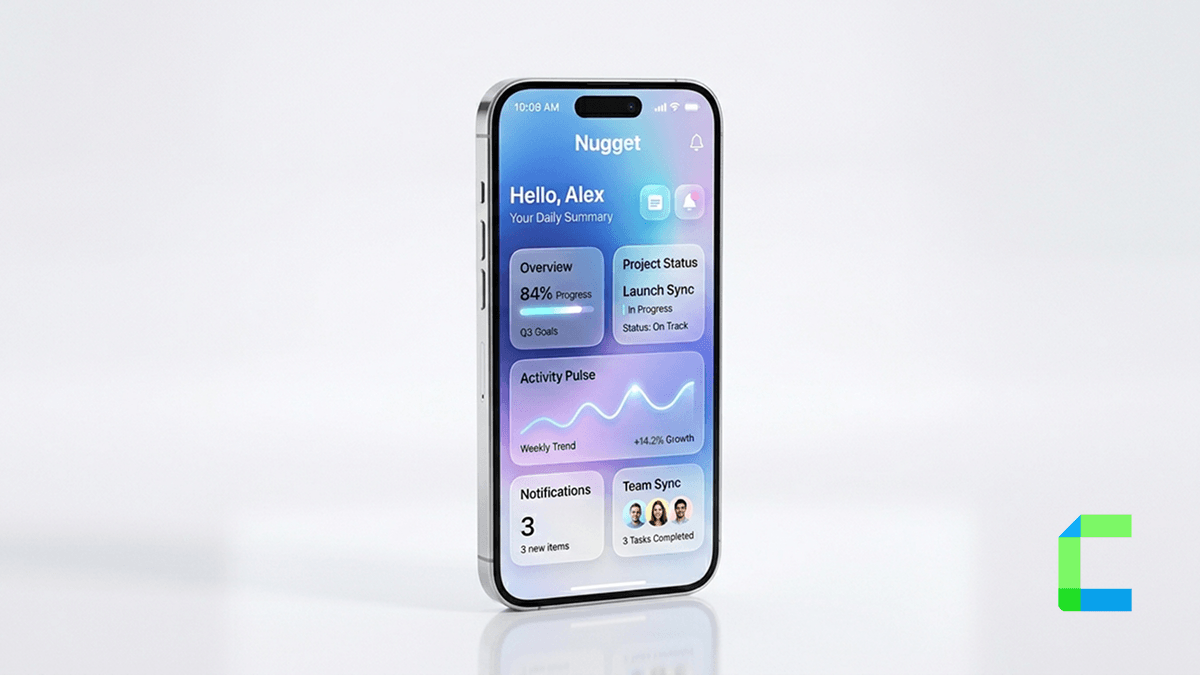
Nugget is a third-party computer application that also allows for a community-based custom animated wallpaper for an iPhone that is customizable and easy to use. It allows users to add dynamic wallpapers, also known as Poster Boards to their device’s native wallpaper settings without a jailbreak.
Depending on the version, Nugget for iOS may allow things like:
- Enabling Dynamic Island on unsupported devices
- Changing the default home screen grid layout
- Applying customizations not accessible through standard iOS settings
- Toggling hidden developer or regional options
Key Features of Nugget iOS
- Speedy Setup Templates
- Status Bar Tweaks
- Lockscreen Footnote
- Clean Look Mode
- TrustStore Toggle
- Safe Restore Handling
Nugget iOS 26: does it work?
Honestly, the answer changes with every new release. iOS 26 (if that's a version you're currently running or have heard about) may or may not be supported depending on when the Nugget developers have had time to update the tool.
The best way to check this is to:
If you want to get more information regarding nugget iOS 26, read Nugget iOS 26: Full Compatibility Guide.
Nugget GitHub: why it matters
When you're dealing with any iOS customization tool, going to GitHub matters for several reasons:
- You can see when the project was last updated an abandoned project is a risk
- The Issues tab shows known bugs and whether they've been fixed
- Release tags show you which iOS versions are officially supported
- You get the file directly without any third-party middleman
Nugget iOS wallpaper and Nugget wallpaper
One of the most convenient ways for you to find and customize the best wallpapers for your iPhone is by using the Nugget wallpaper engine. The wallpapers that you get with Nugget go beyond the standard settings on your iPhone.
To install and use Nugget wallpapers, there are a few things to consider before you do anything else:
- Computer: A Mac or Windows PC necessary to run the Nugget application which will help you install your wallpapers on your iPhone.
- iOS Device: An iPhone or iPad running iOS 17 or iOS 26 is required.
- Data Cable: A USB cable that can transfer data is needed to connect your iOS device to your computer.
Before applying any changes, you should turn off your Find My iPhone feature. This is a security measure to protect your device during the modification process, and it’s important that it’s off while you modify essential changes to your mainframe.
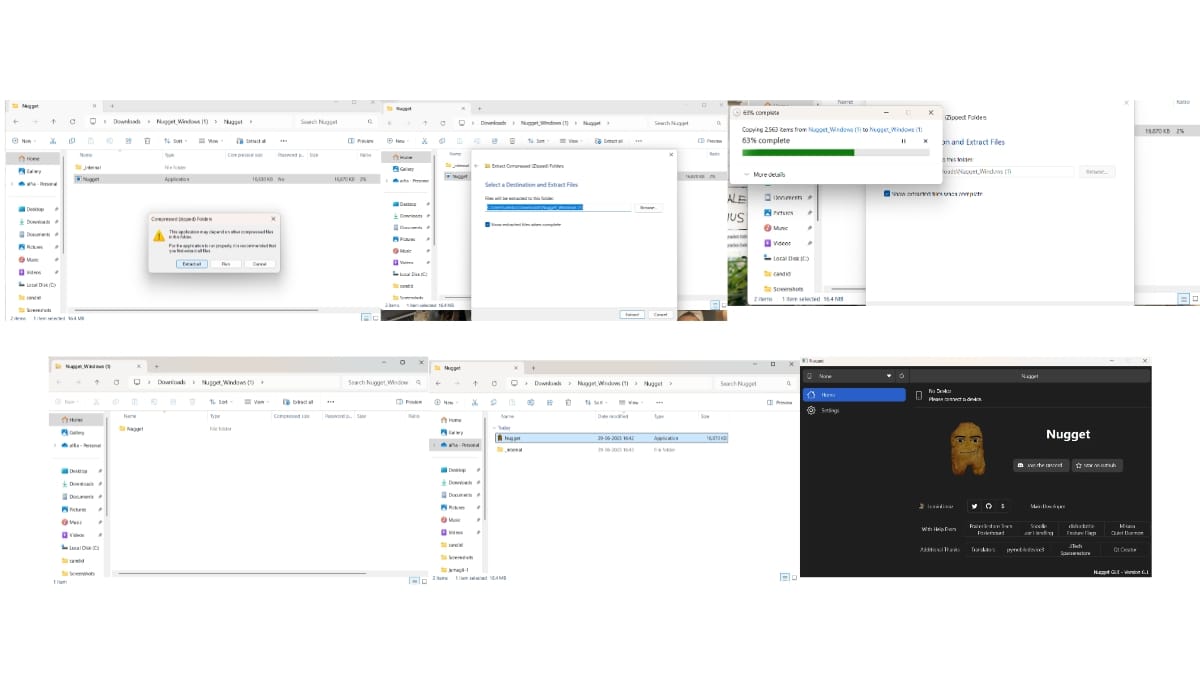
Nugget iOS vs other iOS customization options
| Option | Best for | Risk level | Notes |
|---|---|---|---|
| Nugget iOS | Non-jailbreak system tweaks | Medium | Open source, needs sideloading; always check GitHub for latest iOS support |
| Nugget iOS | Deep system customization | High | Voids warranty, security risks, harder on newer iOS versions |
| Shortcuts app | Workflow automation | Low | Fully Apple-approved; limited to what Shortcuts allows |
| AltStore / sideloading | Installing non-App Store apps | Medium | Official-ish method, 7-day signing for free accounts |
| MDM profiles | Enterprise or school config | High | Can grant significant device control; never install from unknown sources |
Common problems and fixes
Issue 1: Nugget iOS Not Opening
If you face issues like Nugget iOS not opening or not launching there are a few settings that you need to do and if the issue still persists, try these solutions:
Solution: Uninstall & Reinstall
- Nugget is a third party application and takes permission to install. So you need to connect the iOS device to a PC and make sure the device is “trusted.”
- For Mac desktop client users go to System Settings > Privacy & Security > Open Anyway if it’s blocked from opening by the operating system.
- You can also try clearing the cache in the App Settings or System Settings and restart the phone.
Issue 2: Nugget iOS Wallpaper Not Working
After updating you see the wallpapers are still there, but you can’t use them. Here’s what to do:
Solution 1: Re-add Them
- Connect your phone to a PC and run the latest version of the Nugget desktop application.
- Go to the Poster Board section.
- If your .tendies wallpaper files are no longer visible, go to the Import Files section the custom wallpaper of your choice.
- To reapply the wallpaper, go to the Poster Board section and select the desired wallpaper.
- Click Apply and Apply Changes.
- Your phone will restart automatically.
- After restarting go to the Lock Screen
- Open Wallpaper Gallery and tap the + button to add a new wallpaper.
- Scroll down to the Collections Section and you can see the Poster Board wallpaper.
- Select and set the new wallpaper.
Solution 2: Wallpaper Collection Missing
If the whole Collection section is missing from your wallpaper section it is not your fault but it’s a bug and can be fixed by changing the language. As weird as it may sound but yes changing the language can surely help and here’s how to do that:
- Go to Settings and General and then Language and Region.
- Change the language from English to anything like German or French or anything.
- iPhone will restart with the same language.
- Now go to Settings and change it back to English and wait for it to restart.
- After this go to Wallpapers from Lock Screen and check if the Collection you want is back and reapply it.
Issue 3: Square Dynamic Island on iPhone Below XR
Dynamic Island on your iPhone 7 or 8 shows a rectangular bar instead of a cylindrical shape.
Solution:
There’s only one solution to fix this issue and that is to change your iPhone. Because the Dynamic island border radius matches the border radius of your iPhone, that’s why it’s rectangular in shape instead of a cylindrical shape. On newer models like XR or above, you won’t see this issue because it matches the radius and is shown more rounded.
Read Also:
Conclusion
We hope that you find the most suitable nugget iOS customization including wallpaper for your iPhone. You can modify the Status bar, apply video wallpapers, give a clean look to your Status bar, add a footnote to the lock screen, and many more. This iOS customization tool is perfect for users who want a fresh and lively look for their iOS device. Try Nugget iOS, download it to unlock some of its amazing features.