

Last Updated: August 2026
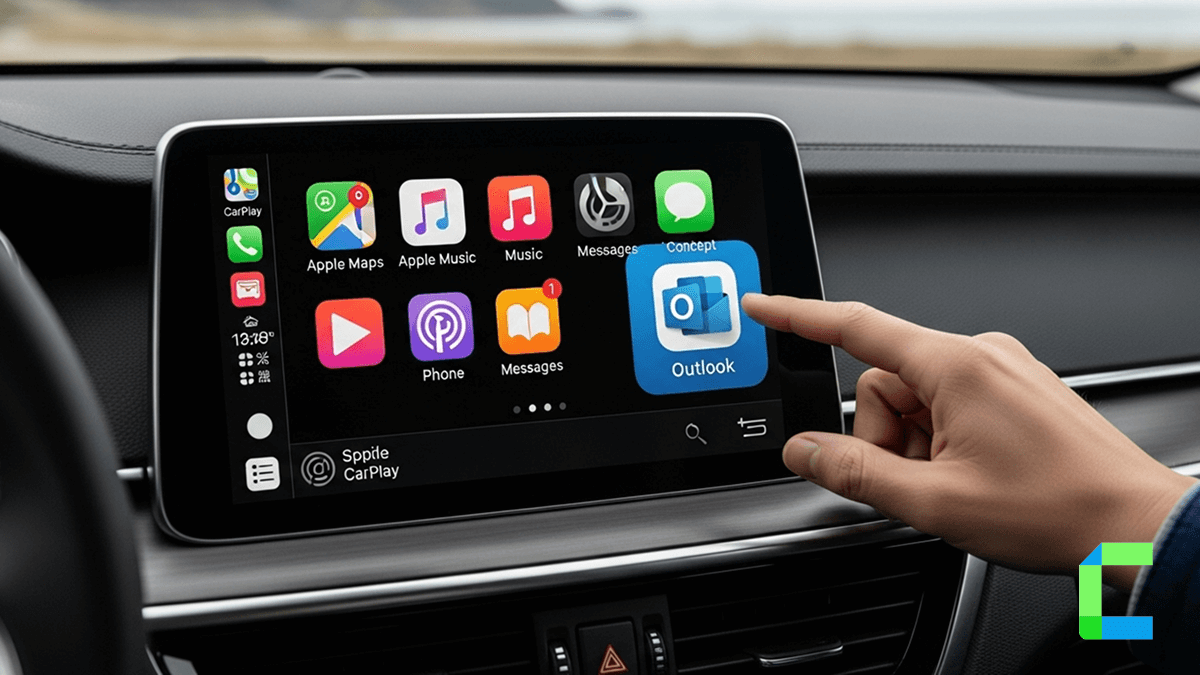
Even if you are unfamiliar with using Outlook Email on Apple CarPlay here, we are ready to guide you to use Outlook on Apple CarPlay.
In CarPlay you will not be permitted to use email as it could disturb driving. Therefore only a few methods are currently available to achieve this. Stay till the end to know how to add any app to Apple CarPlay.
You can add any app to your CarPlay now, here we listed the best software and hardware solutions for you. Some need jailbreak and some don't.
Let’s see how to use CarPlay Outlook app.
Use Outlook email with Siri assisted
For safety reasons, you will not be able to use emails on CarPlay. But you can still use Siri while driving to make new emails and read them. Here is the guide to add Outlook to CarPlay.
Step guide to using Siri to Send and dictate emails while driving:
As Siri only supports iOS emails, to do this first you have to add Outlook emails to iOS emails.
Once you have done the process you can access it on the iOS Mails app.
Now let’s see how to use Apple CarPlay Outlook apps with Mails.
WheelPal
Do you know that you can add any app to Apple CarPlay with the WheelPal app?
WheelPal lets you add any non-default CarPlay apps to Apple CarPlay like CarBridge,NGXPlay,InCar. Through these apps you can download whatever app you want, into your CarPlay.
Not only emails, but you can also add other apps to CarPlay including, Netflix and YouTube.
So why are you waiting? Grab your WheelPal app now!
Add Any app to Apple CarPlay with CarPlay adapters
For those who love to add any other apps to CarPlay other than the usual apps, here we have wireless CarPlay adapters for you. these best-selling CarPlay adapters are now available on the CarPlay Hacks Store.
- Carlinkit Ai Box wireless CarPlay adapter
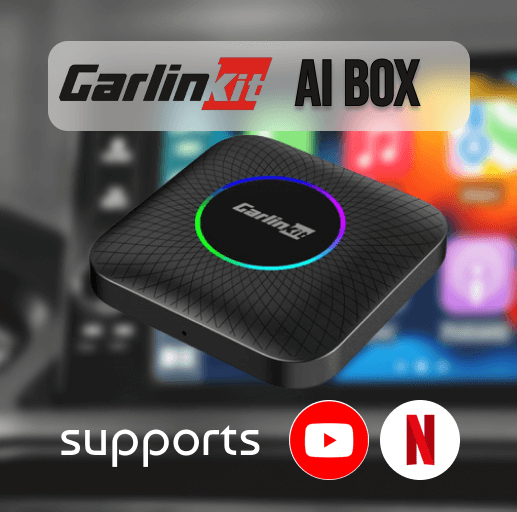
Carlinkit is a famous brand for wireless adapters, which can enable YouTube on CarPlay. This Wireless CarPlay adapter is easy to use, and easy to connect with provided cables and also with Bluetooth. As the adapter is compatible with a huge range of iOS devices and versions it will be a very convenient product for you.
Features:
- Compatible with iPhone models from iPhone 6s and onwards.
- Compatible with iOS 10 till the latest.
- Works with cars that have built-in CarPlay.
- Comes with a built-in 64 GB ROM.
- Can be connected with a USB cable.
- Add any app to CarPlay.
- Enables video streams like YouTube and Netflix on CarPlay.
- Easy to connect, and after the initial connection, it will remain further.
2. MMB wireless CarPlay Ai Box
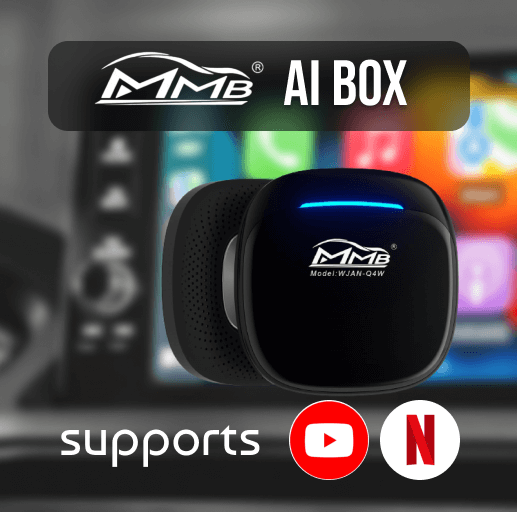
MMB Wireless CarPlay adapter is a new and handy adapter that can be used in CarPlay. It enables watching Netflix, and YouTube streams on Apple CarPlay without jailbreak. As many car enthusiasts are interested in watching videos in CarPlay this adapter became popular among them.
Features:
- Compatible with iPhone models from iPhone 6s and onwards.
- Compatible with iOS 10 till the latest.
- Works with cars that have built-in CarPlay.
- Comes with a built-in 64 GB ROM.
- Can be connected with a USB cable.
- Add any app to CarPlay.
- Enables video streams like YouTube and Netflix on CarPlay.
- Easy to connect, and after the initial connection, it will remain further.
Stay with us for more news and updates on CarPlay apps and hacks. Don’t forget to check out the latest updates on CarPlay Slack. Ever wanted to get MS Teams on CarPlay and didn’t know how? Check out the easy methods to add your most-wanted apps on Apple CarPlay, including Gmail.
Never forget your safety while you are on the road ever again. While you are concerned about your favourite apps, make sure to take care of yourself too! Have a safe ride.